Connect Claude to your AI agent
Import your Claude.ai chat history into your Spawn agent. Three steps, no API access required.
Bringing Claude.ai history into another AI agent looks easier than it is. Anthropic does ship OAuth tokens, but in February 2026 they updated their terms to ban any third-party app from using subscription OAuth — with active enforcement starting April 4, 2026. Even before that, the available scopes (user:inference and user:profile) never covered reading conversations. The official data export is the official path.
- 01
Open Claude's Privacy settings
Sign in to Claude.ai, click your name in the lower-left, and choose Settings. In the sidebar, pick Privacy. Scroll to 'Your data' near the bottom.
Open Claude settings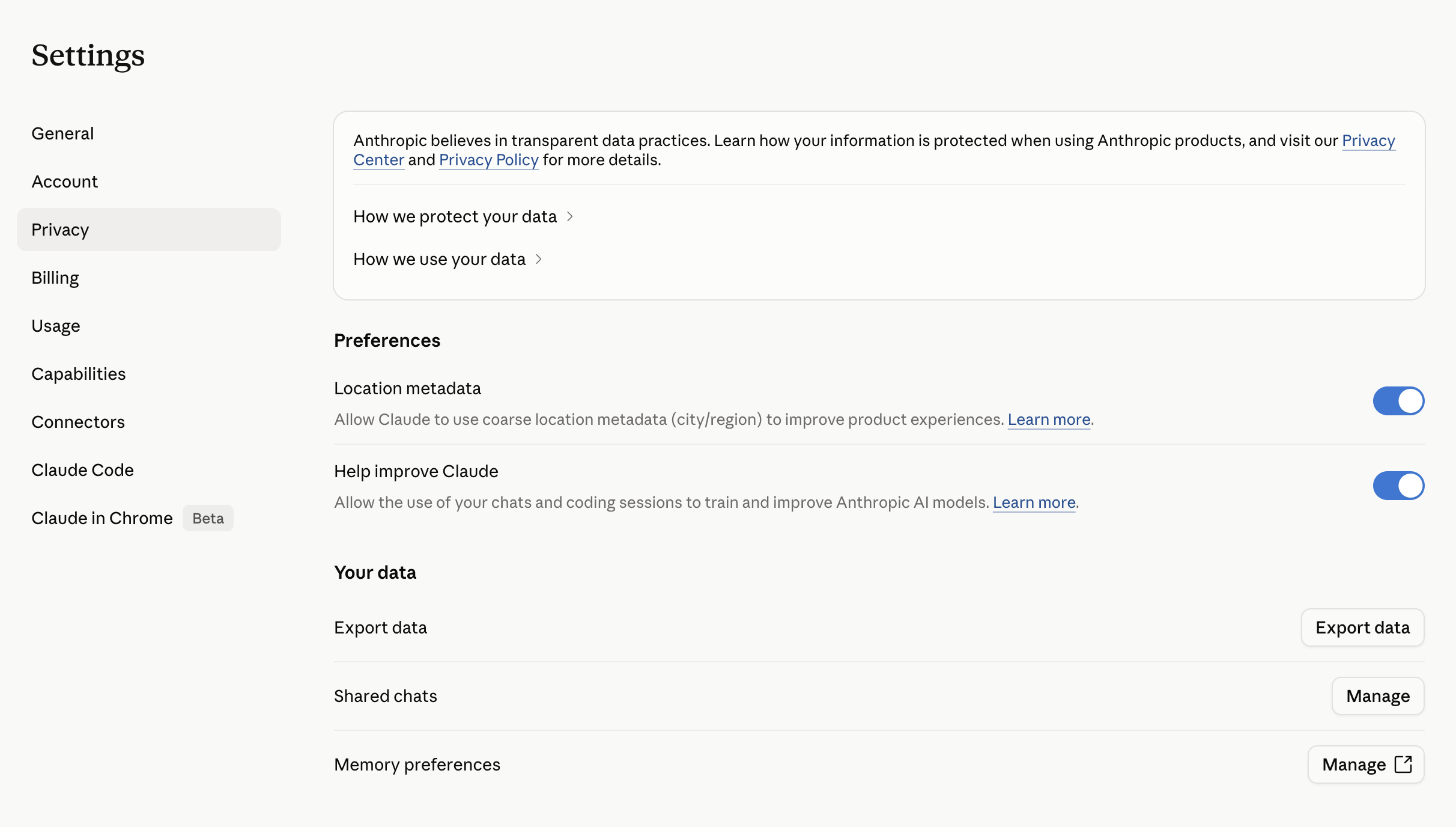
- 02
Click Export data and wait for the email
Click Export data on the right side of the row. Anthropic emails a download link to your account email within a few minutes. The ZIP contains conversations.json (or conversations.jsonl on older exports), users.json, and any project metadata.
- 03
Drop the ZIP into Spawn
In Spawn, navigate to Integrations & Data → Data Sources → Claude (full path: spawnlabs.ai/configurations?tab=data&source=claude). Click Import data, drag the ZIP into the drop zone. Both the .json and .jsonl shapes are handled, and both the older raw-text and newer content-blocks formats are extracted. Each conversation becomes its own memory entry under your default agent.
Open Claude data source in Spawn
Imported Claude chats live in your default agent's brain at spawnlabs.ai/configurations?tab=data&source=claude. Every agent you spawn can search them by default; the same page is where you grant or revoke per-source access for other agents, and where the Remove all data button wipes the ZIPs, parsed memory, and vectors in one cascade.
Frequently asked
Next guide
Ready to put this guide to work?
Spawn an AI agent for the work that eats the most hours. First agent live in under an hour.